

Dashboard
Firmware Updates
Scheduling and applying firmware updates via the Dashboard.
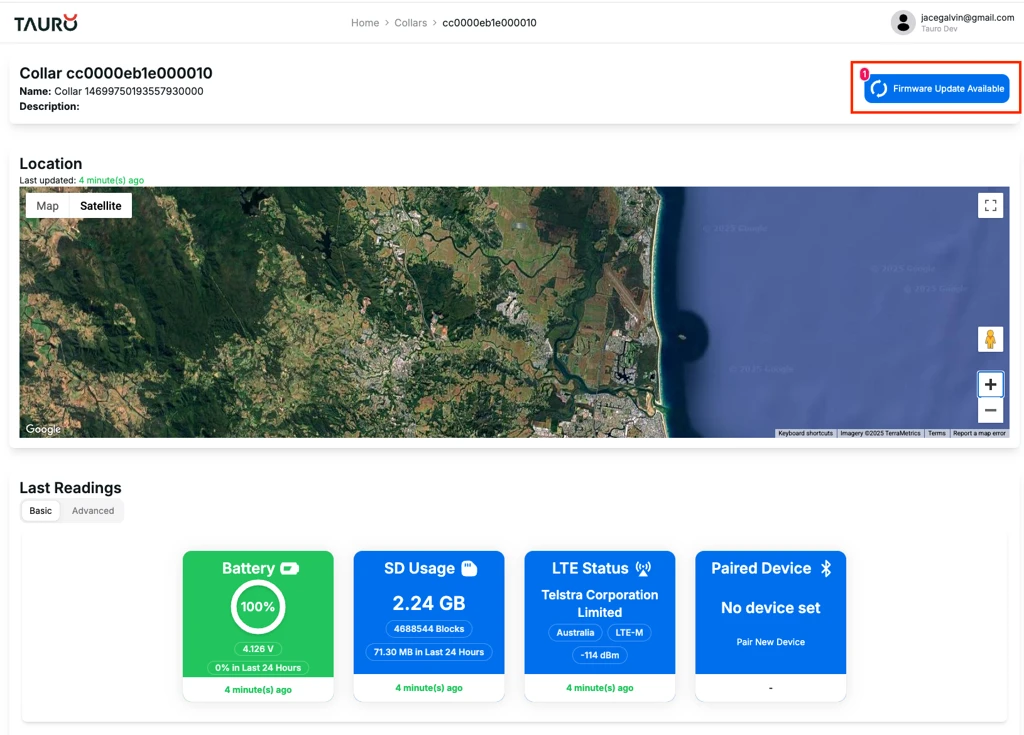
When a new Device Firmware Update is available, the Dashboard will display a button notifying you and allowing you to schedule the update.
The button is located in the top-right corner of the device page.
Current Firmware Version
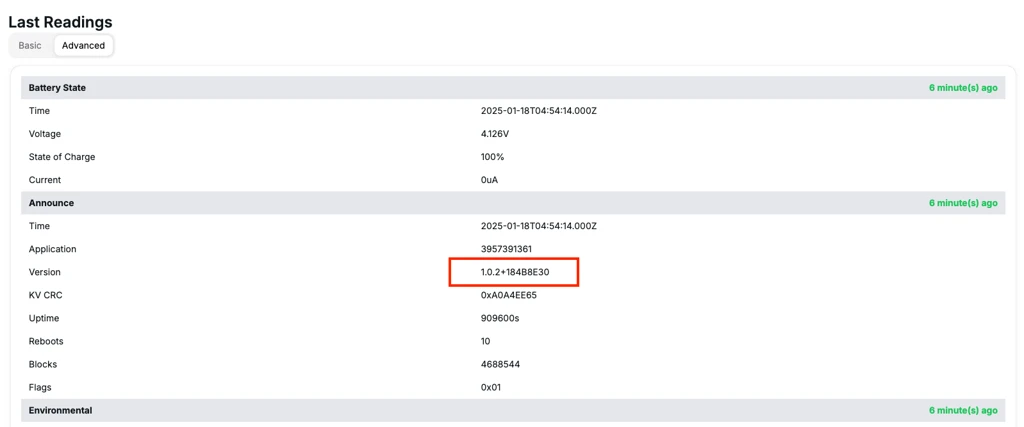
The device’s current firmware version can be found in the Advanced tab within the Last Readings section.
In this example, the device is running version 1.0.2.
Scheduling the Update
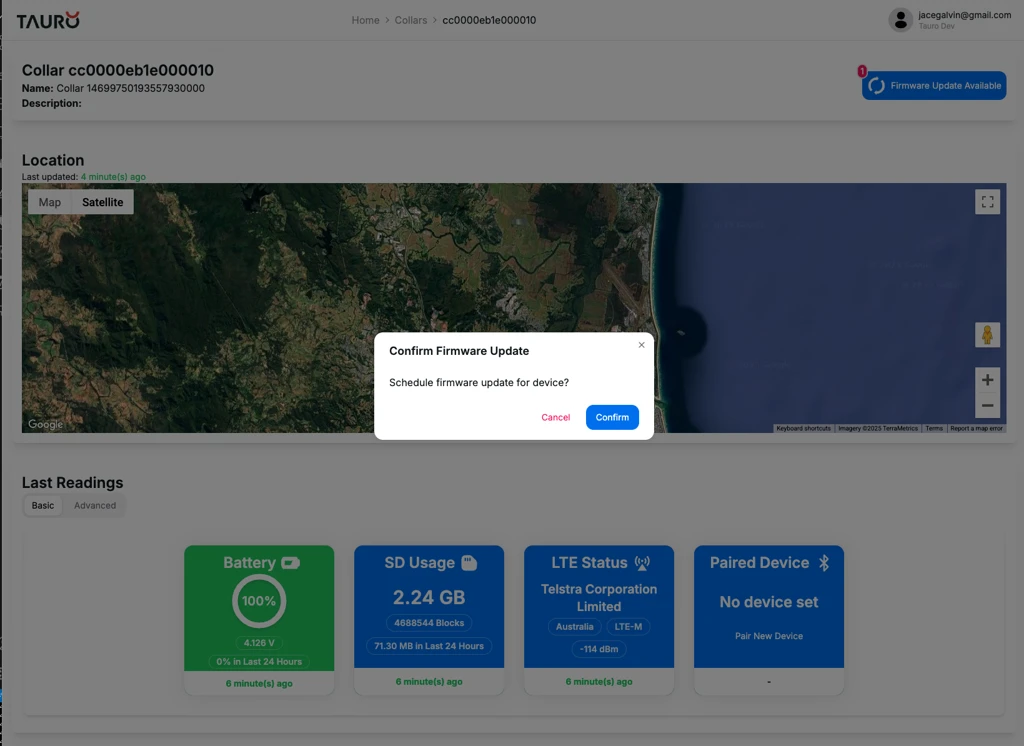
When the Firmware Update Available button is pressed, a confirmation message will be displayed.
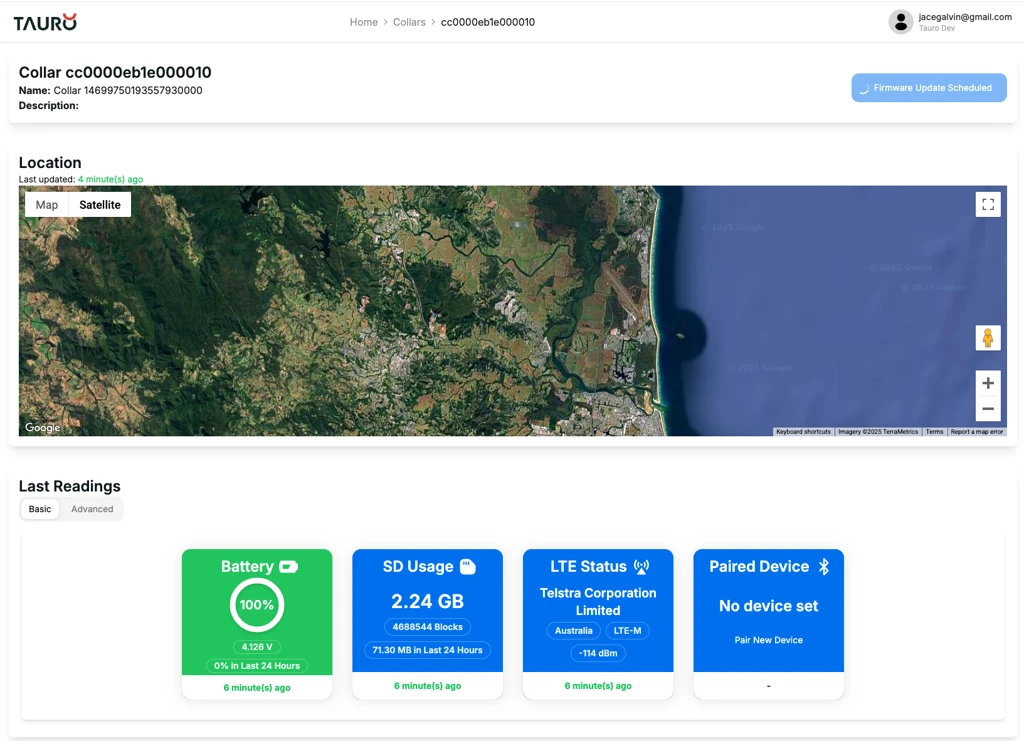
Upon confirming the update:
- The update request is queued.
- The button will change to indicate that the update has been scheduled.
Update Process and Timing
The firmware update will be sent to the device the next time it transmits data.
After the update is applied:
- It may take up to 10 minutes for the Dashboard to reflect the new firmware version.
- During this period, do not attempt to schedule another update.
Once the update has been successfully applied:
- The Firmware Update Available button will disappear.
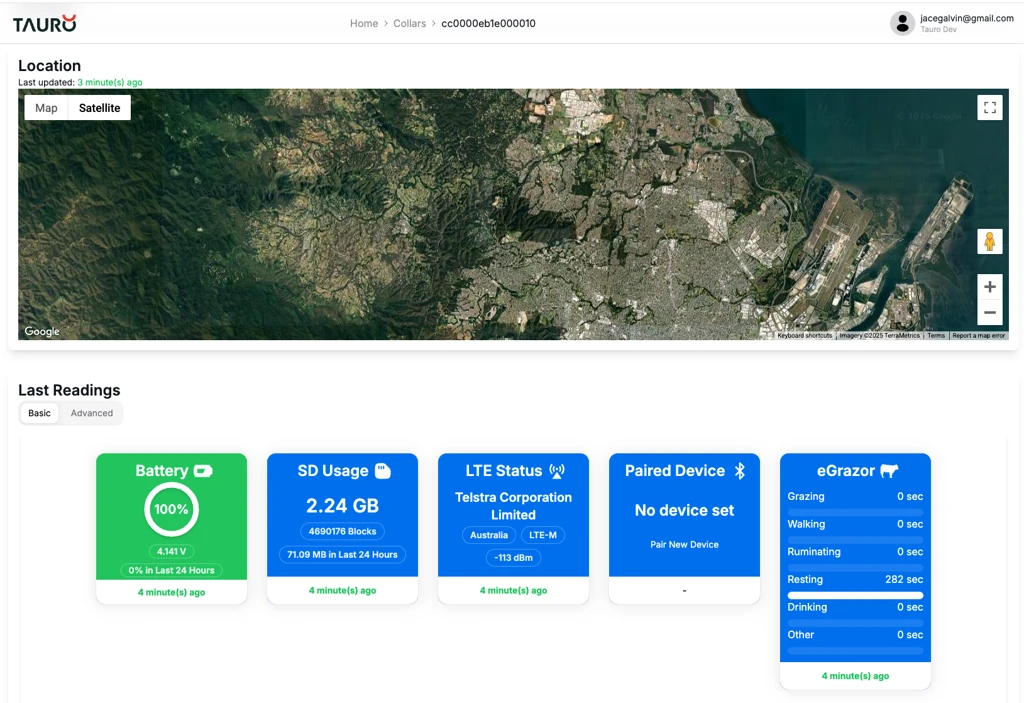
- The firmware version displayed in the Advanced tab will show the new version.
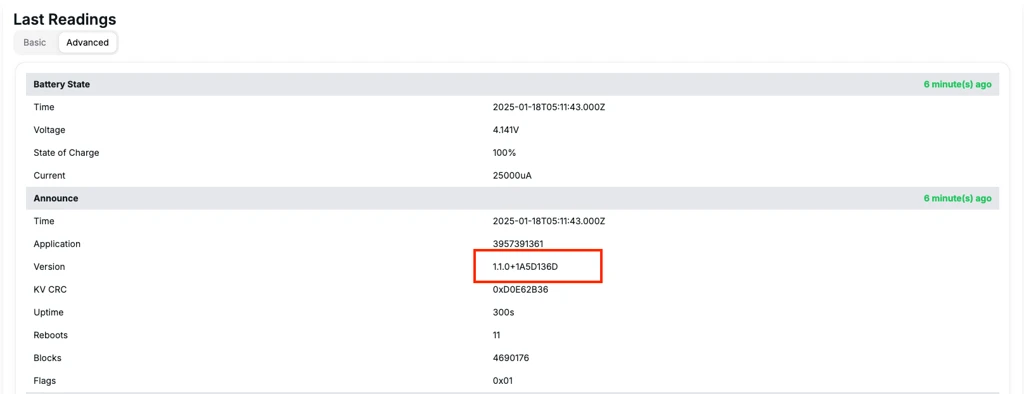 In this example, the firmware version updates from
 1.0.2 to 1.1.0.