
Device Pairing
Pairing a tag to a collar is performed via the Dashboard.
Navigate to the collar’s device page.
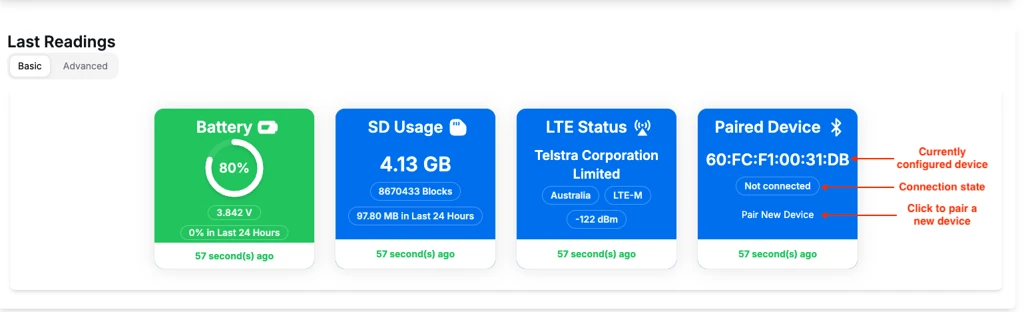
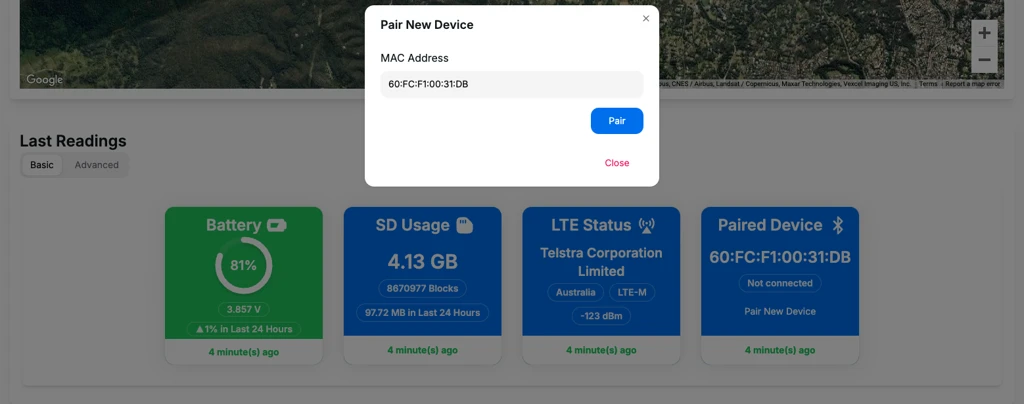
Under the Last Readings section, look for the Paired Device tab.
This tab displays:
- The currently configured device address
- The current connection state
A collar can be configured to pair to a specific device. Once configured, the collar will attempt to connect to that device. When a connection is established, the updated connection status is reported on the next LTE uplink.
In the example below, the collar is configured to connect to device 60:FC:F1:00:31:DB, but it is not currently connected.
Changing the Paired Device
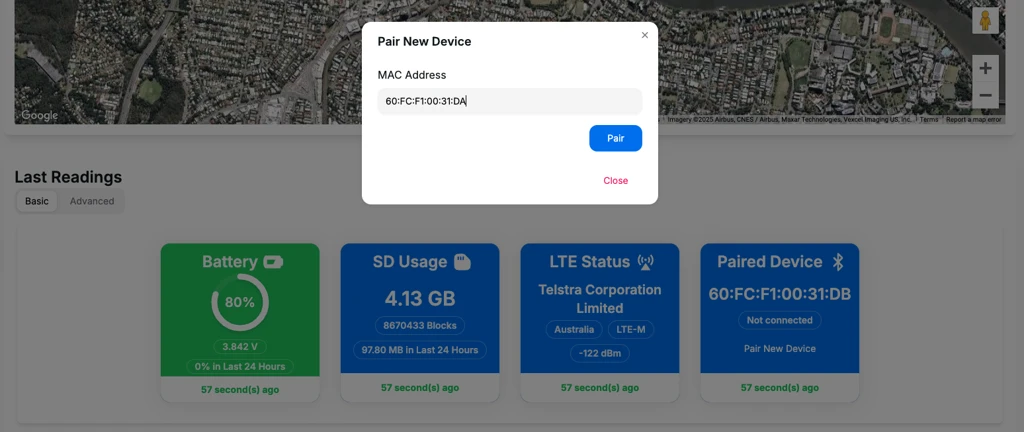
To configure a new device:
- Click Pair New Device.
- Enter the device address in the pop-up window.
- Click Pair.
Update Queue Behaviour
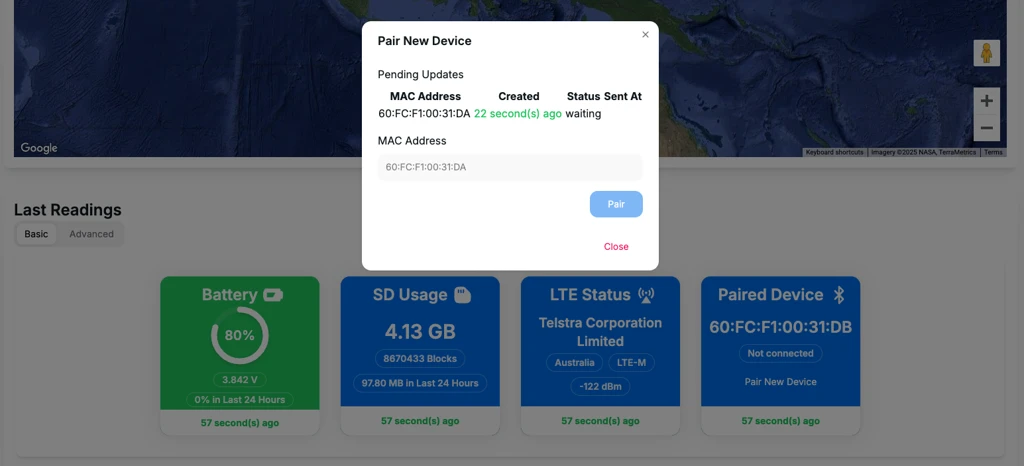
Once the Pair button is pressed:
- An update message is queued.
- The update will be sent to the device the next time it sends an uplink packet.
- The pop-up will display any pending updates for the device.
- New updates cannot be queued if there is already a pending update.
Update Timing
The pairing update occurs in stages:
- The update is queued.
- It may take up to 5 minutes for the update to be sent to the device.
- Once sent, the pending update is removed from the queue.
- The paired device information will not update until the next uplink packet is received (up to 5 minutes later).
During this period, it may appear that the device has not updated.
Confirming the Update
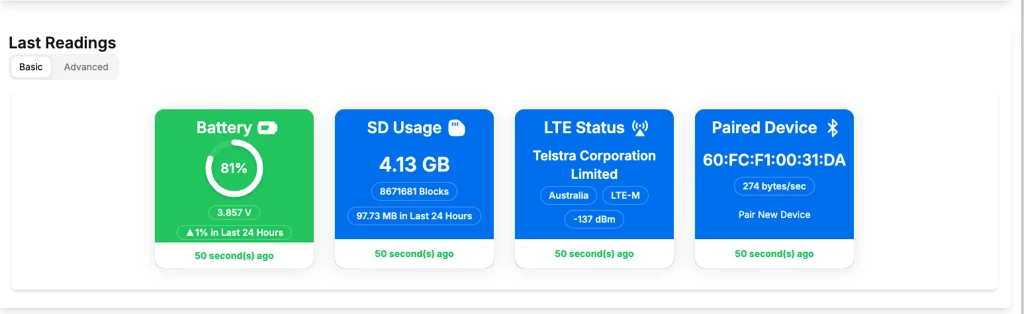
After the subsequent uplink cycle, the Paired Device tab will display:
- The newly configured device address
- The updated connection state
- Connection details (e.g. connected and sending 274 bytes/sec)